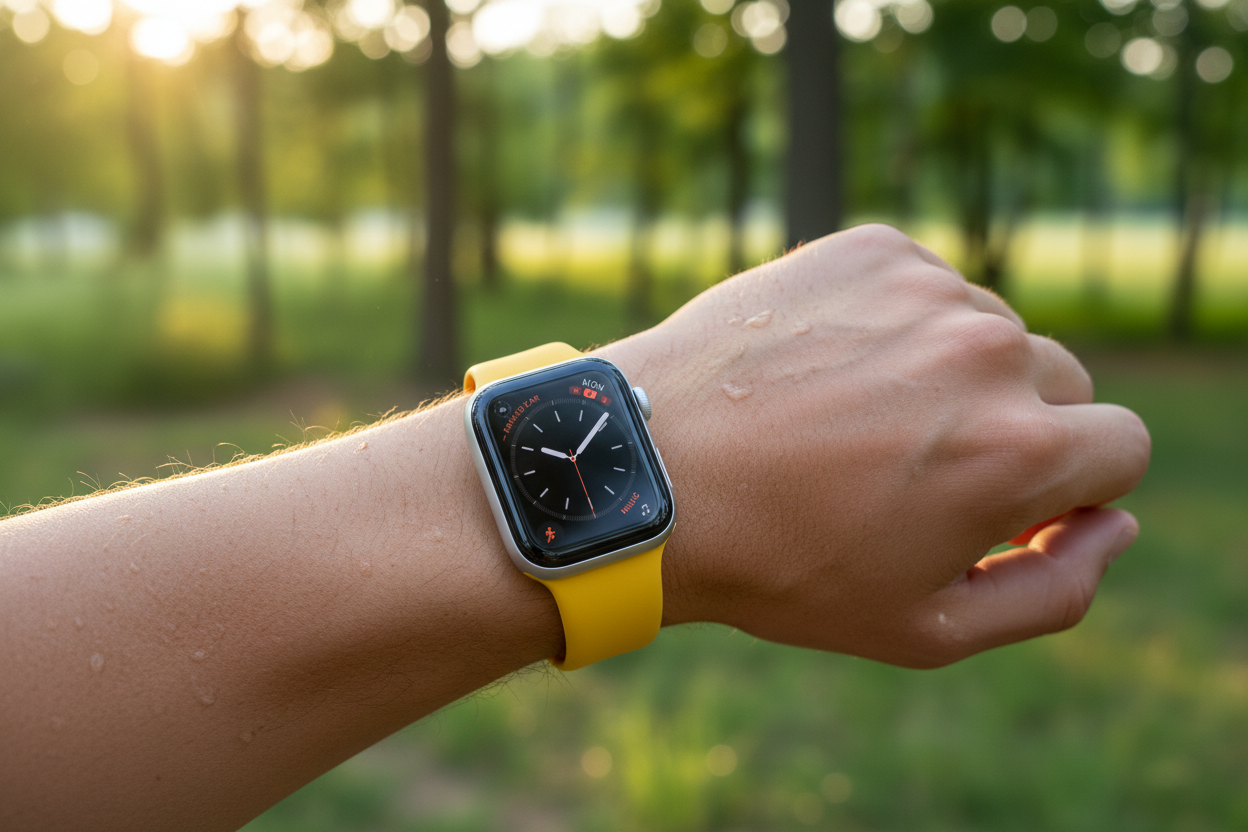
Time flies and smartwatches grow more feature-packed and attractive year after year, but battery life remains a major problem. Traditional watches can't compete on functionality, but you rarely have to worry they'll stop ticking. Smartwatches frequently cause battery anxiety at the end of a busy day or when you forget to charge them before leaving home. But don't fret — these tips will help you save your Apple Watch's battery life and beat the clock.
Most battery-saving tips amount to turning a feature off, but if you switch all the smart functionality off, there isn't much point in having a smartwatch. We recommend singling out the tips that suit you and how you use your Apple Watch, and skipping the rest.
Use Power Saving Modes
Swipe up from the bottom and tap on your battery percentage, or go to Settings > Battery to toggle on Low Power Mode. Choose to turn it on indefinitely or for a set period (one, two, or three days).
Use Airplane, Theater, Do Not Disturb, or Bedtime Mode
- Airplane mode: Turns off connectivity (Bluetooth, Wi-Fi, LTE, and GPS). You can turn these back on individually or toggle Airplane mode off.
- Theater mode: Turns off your screen temporarily and holds notifications and incoming calls.
- Do Not Disturb: Turns off all notifications and incoming calls, with exceptions for repeat callers, specific contacts, and alarms.
- Bedtime mode: Mirrors Do Not Disturb and dims the screen with a simplified watch face.
Change Display Settings
Go to Settings > Display & Brightness to reduce brightness, turn off Always On display, toggle off Wake on Wrist Raise, and choose a shorter Wake Duration. Choose a watch face with a black background and minimal complications or animations.
Turn Off Voice
Go to Settings > Siri and toggle off Listen for "Hey Siri" and Raise to Speak.
Reduce Sounds and Vibrations
Go to Settings > Sounds & Haptics to toggle off sounds and vibrations or reduce the volume.
Limit Background App Refresh
Open the Watch app on your connected iPhone, tap General > Background App Refresh, and toggle it off completely or for individual apps.
Uninstall Unused Apps
Press the Digital Crown to bring up the app screen, tap and hold anywhere, choose Edit Apps, and tap the X to delete unwanted apps.
Turn Off Other Features
Go to Settings > Activity to turn off reminders, or Workout to switch to Low Power Mode during workouts and toggle on Fewer GPS and Heart Rate Readings. Explore settings and turn off any unnecessary features.
By following these tips, you can significantly extend the battery life of your Apple Watch without sacrificing its essential functionalities. It's all about finding the right balance that works for you — with a few tweaks, you can enjoy all the benefits of your Apple Watch while keeping battery anxiety at bay.
Pair your Apple Watch's extended battery life with the most comfortable bands you'll ever wear — or try our 2-in-1 charger!