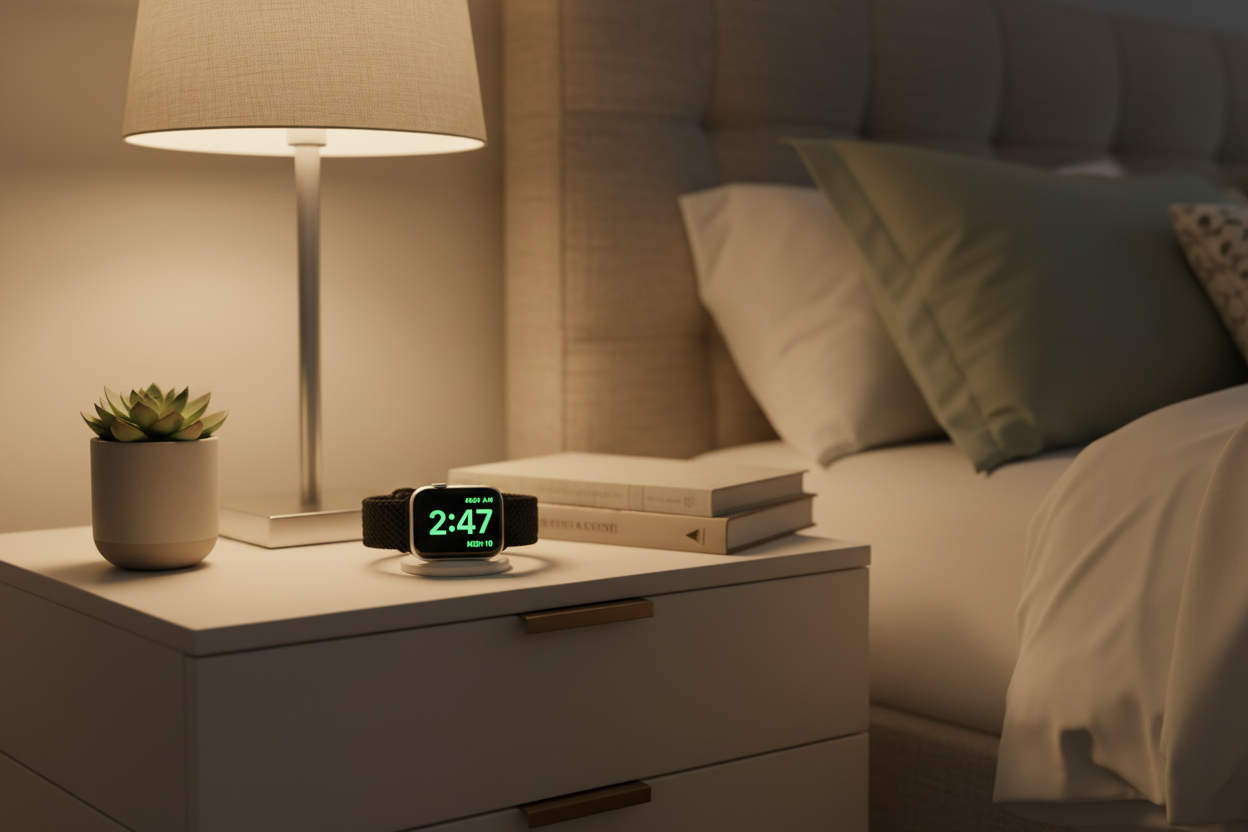
Apple is known for including as few buttons as possible on its devices, and each button wears many hats. The Apple Watch is no exception — but a lot of people are missing out on the many things these side buttons can do. Here are 10 things you might not know you could do with your Digital Crown and side button.
1. Quick Access to Siri
Holding down the Digital Crown will automatically activate Siri — probably the easiest and most reliable way to speak to Siri under any conditions.
2. Open the Previous App
A double press of the Digital Crown will open the last app you were using. Double pressing again will return you to the app you started with.
3. Open Favorites Instead of Recents
The side button typically opens the Dock with your most recent apps, but you can change this to show your preselected favorites instead. Go to Settings > Dock > Favorites. This can be a game changer if you typically only use a handful of apps.
4. Quick Access to Wallet
Double tapping the side button will automatically open your Wallet, giving you quick access to your Starbucks card, gym barcode, and all your other favorites.
5. Force Quit an Unresponsive App
Hold down the side button until the Power and SOS controls appear, then hold down the Digital Crown until the app disappears from your screen. A quick way to quit a frozen app without wasting time.
6. Emergency SOS
Hold down the side button to access the Emergency SOS feature. Activating this will call emergency services and instantly send them your location.
7. Quick Access to Medical ID
Holding the side button also gives you quick access to the Medical ID feature in case of emergency — but only if you've enabled it in the Health app on your iPhone.
8. Take a Screenshot
If you have screenshots enabled in Settings, you can take a screenshot by simultaneously pressing the Digital Crown and the side button.
9. Control Screen Brightness
When your watch is on standby (screen off), gently rotating the Digital Crown will gradually brighten the screen. Great for when you don't want to disturb others in a dark room or movie theater.
10. Pause a Workout
If you're tracking a workout, you can pause the session by pressing the Digital Crown and side button simultaneously. Press them again to resume. Pro tip: if you have screenshots enabled, this will also take a screenshot — so you may want to pick one or the other!
Follow us on Instagram @ownloop for all our latest content, and visit ownloop.com for the most comfortable Apple Watch bands around.