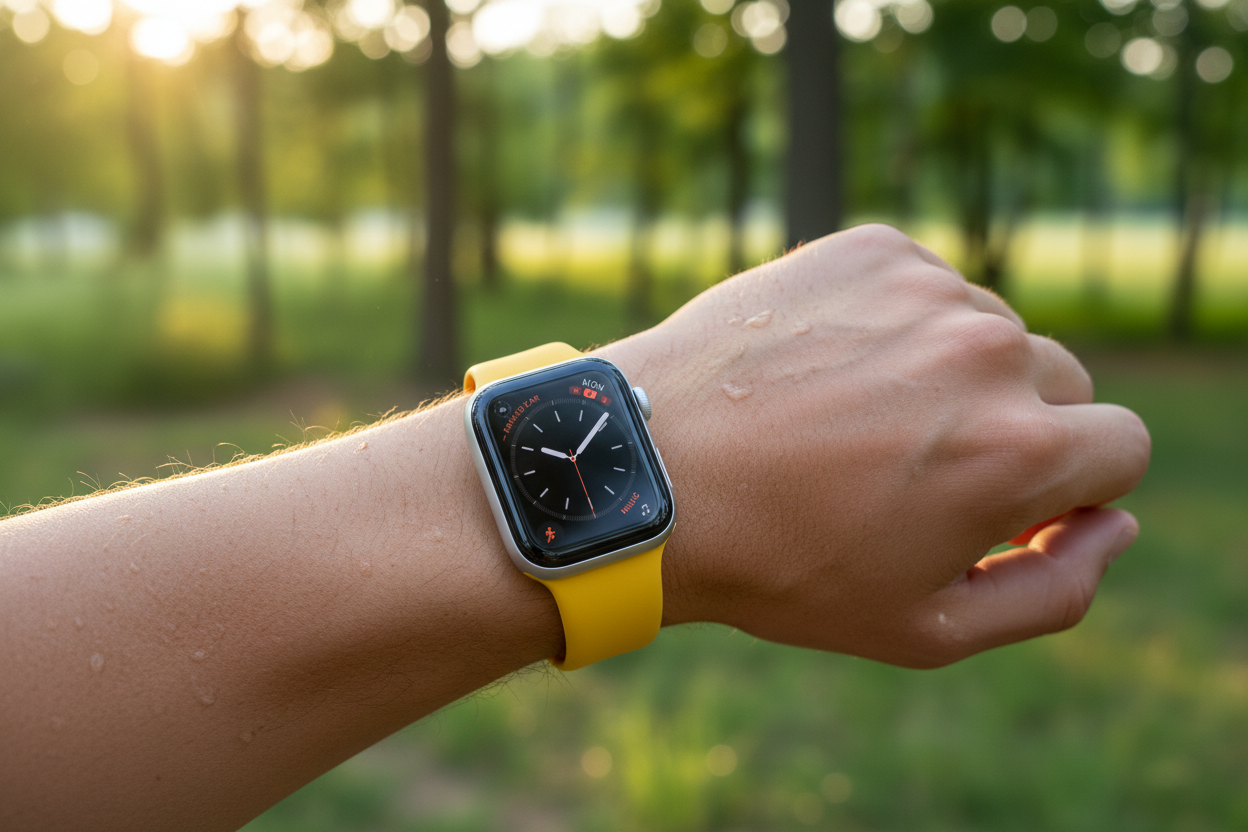
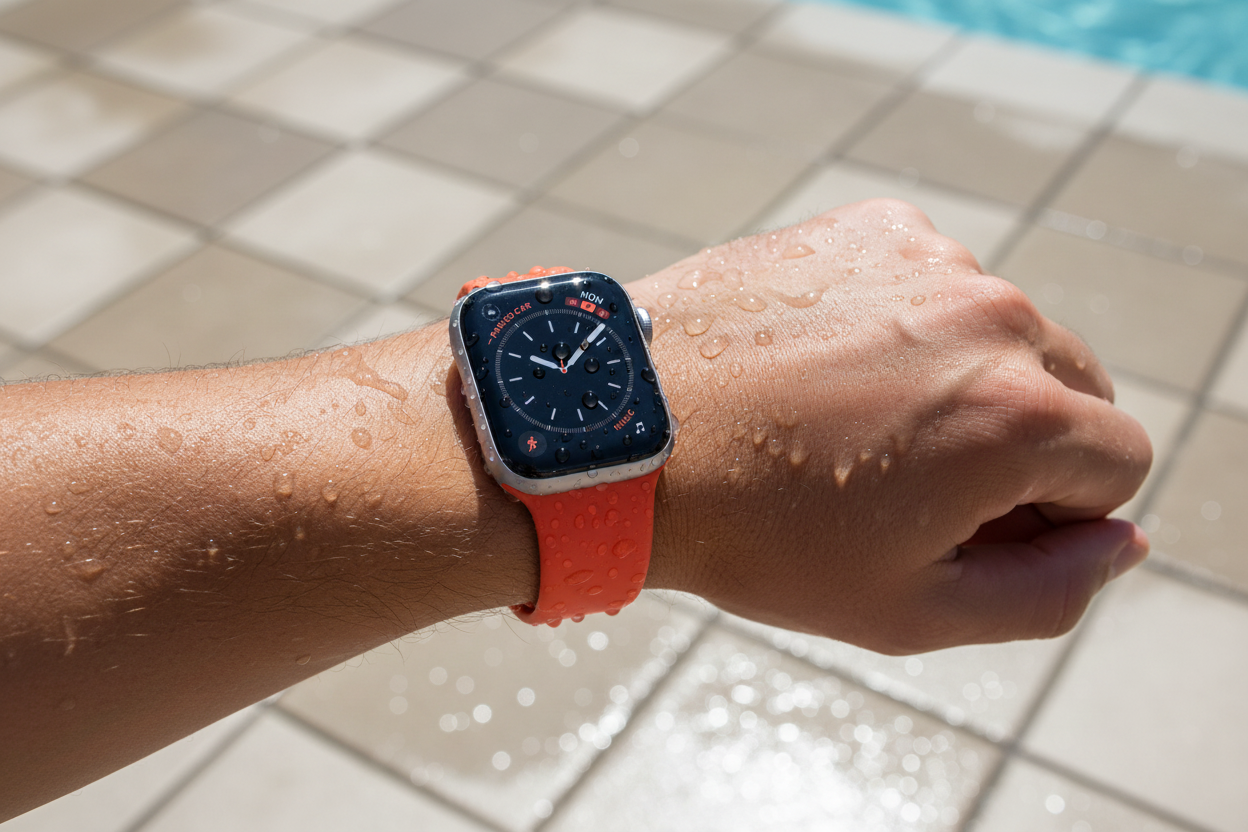
Your Apple Watch is fantastic, but constant notification pings can be disruptive. Whether you're in a meeting, at the movies, or just need some peace, here's how to manage those alerts.
Silence the Noise for a While
Need a break from notifications for an hour or the rest of the day?
- Swipe down from the watch face to open Notification Center.
- Swipe left on the notification you want to silence.
- Tap the three dots and choose "Mute 1 Hour" or "Mute for Today."
Ditch Notifications Completely (for an App)
Want to permanently silence a specific app's notifications?
- Open Notification Center (swipe down from the watch face).
- Swipe left on the notification and tap the three dots.
- Choose "Turn Off."
Silence the Sounds, Keep the Alerts
Sometimes you just want to see notifications without the noise.
- Press the side button to open Control Center.
- Tap the bell icon to mute sounds. A red icon will appear.
Hide Notification Previews on Lock Screen
Want to avoid peeking at notifications while your wrist is raised?
- Open the Settings app on your Apple Watch.
- Tap "Notifications."
- Turn off "Show Summary When Locked."
- Turn on "Tap to Show Full Notification" (optional, to see details when you tap).
Clean Up Notification Center
Want to clear out old notifications? Here are your options:
- Single Notification: Swipe left on the notification and tap the "X" or scroll down and tap "Dismiss."
- Clear All Notifications: Swipe up in Notification Center, tap "Clear All" at the top.
Bonus Tip: Clear Multiple Chat Messages
If you have a bunch of messages from the same person, you can clear them all at once. Tap the notification, scroll down, and tap "Clear."
By following these tips, you can customize your Apple Watch notifications and create a distraction-free experience. Silence the noise, manage what you see, and take control of your Apple Watch experience!
Limit your distractions even more by pairing your Apple Watch with the most comfortable bands you'll ever wear!