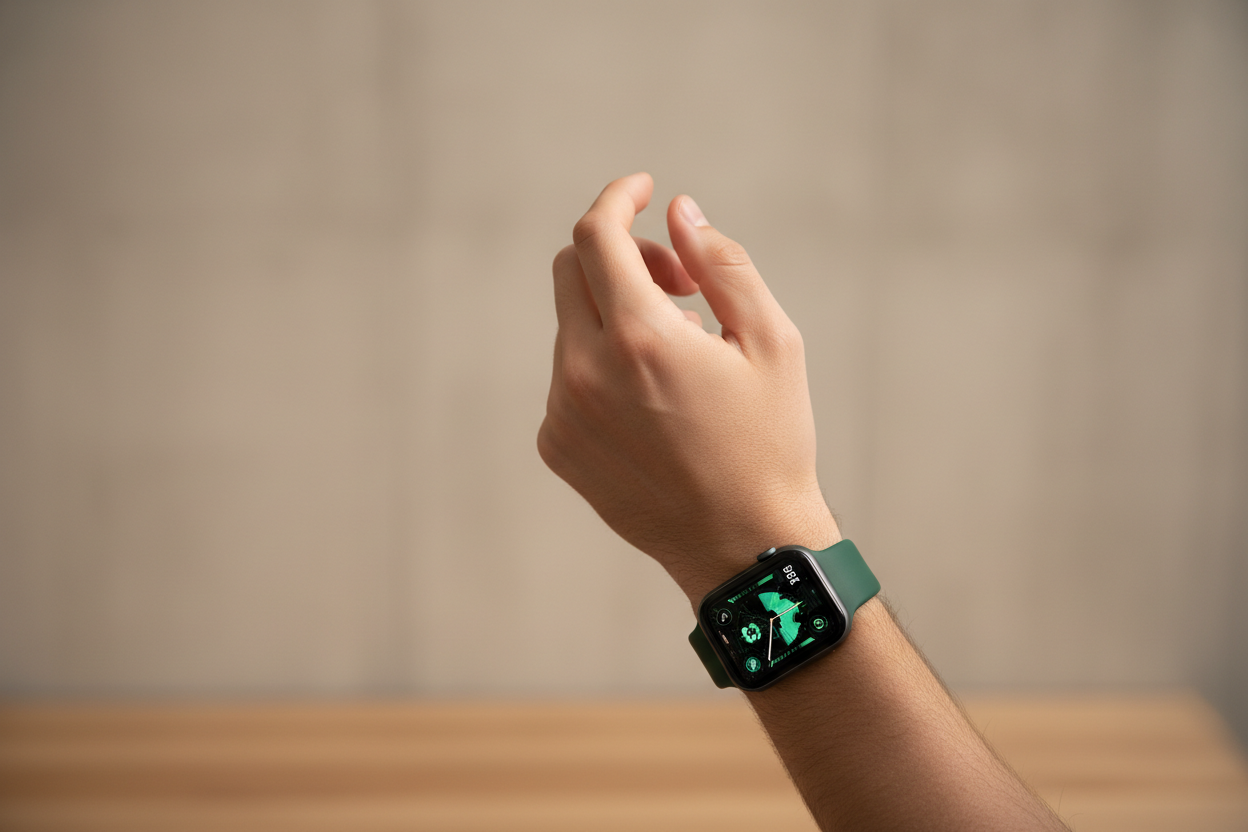
Whether you're brand new to the Apple Watch or a seasoned vet, there are undoubtedly a ton of features packed into this tiny device. While the mainstream features are easy to find, Apple has included a lot of hidden gems you might actually have to look for. Here are five underrated Apple Watch features the Ownloop team uses all the time!
1. Turn Your Apple Watch into a Walkie-Talkie
One of the most underutilized features is using your Apple Watch as a Walkie-Talkie to instantly talk with friends and family right from your wrist. We love this for quickly chatting with others in your household or office!
Open the Walkie-Talkie app on your Apple Watch and tap Add Friends. Select the contact you want to invite and wait for them to accept. Once connected, tap your friend's name, then touch and hold the talk button and speak. Let go when you're done and your friend will instantly hear you.
2. Use List View to Quickly Find Apps
Unless you've been using Apple Watch for a while, it can be hard to remember what all the app icons look like. List View makes it much easier to scroll through and find what you're looking for. Head to Settings > App View on your Apple Watch to toggle between Grid View and List View.
3. Remove Apps You Don't Use
Whether you prefer Grid View or List View, removing unused app clutter will help you use your Apple Watch more efficiently. While in Grid View, tap and hold any app icon until the apps start to jiggle with a small x in the corner. Tap the x on any apps you want to remove. Say goodbye to the clutter!
4. Use Theater Mode to Limit Movie Interruptions
Theater Mode not only silences your Apple Watch, but also prevents the screen from lighting up until you tap it or press a button — perfect for movies and shows. To enable it, swipe up from the bottom of the screen to open Control Center, then tap the Theater Mode icon (the two masks). No more bright lights interrupting your viewing!
5. Take a Screenshot on Your Apple Watch
Most people know how to screenshot on iPhone, but it's also possible on Apple Watch — you just have to enable it first. Open the Watch app on your iPhone, tap General in the My Watch tab, scroll down to Enable Screenshots, and toggle it on. Then simply press the Digital Crown and the side button simultaneously to capture a screenshot.
Follow us on Instagram @ownloop for all our latest content, and visit ownloop.com for the most comfortable Apple Watch bands you'll ever wear.