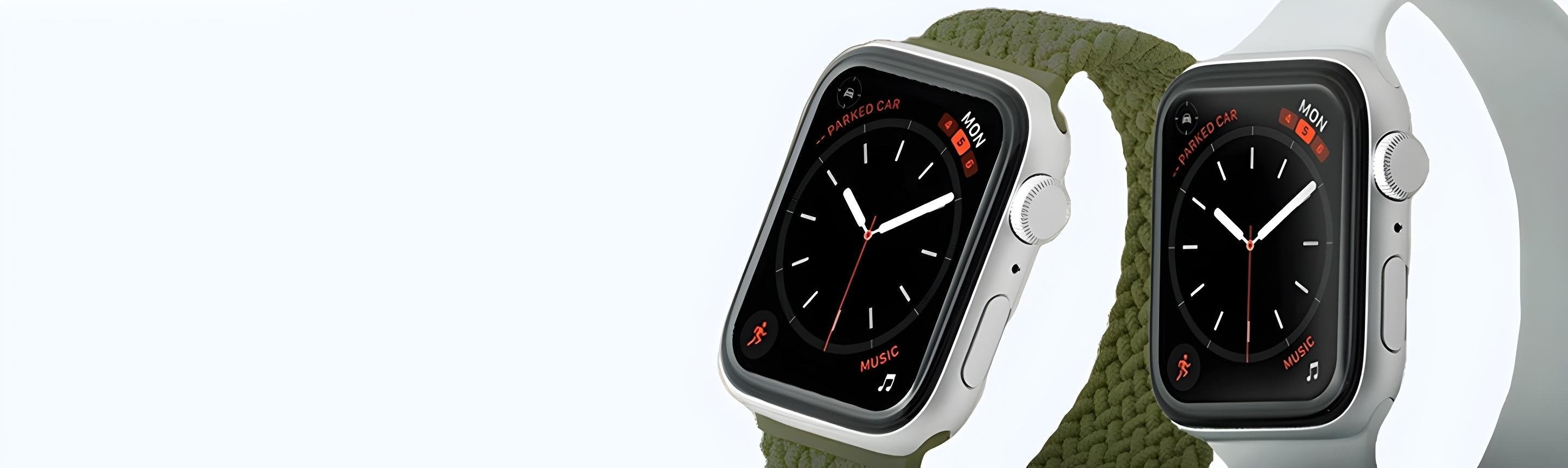
Your Apple Watch might be loaded with useful features, but if your watch face resembles a busy control center, it might be time to streamline it. With watchOS 10, you can declutter your watch face by customizing the widget stack. Here's how to make the most of it.
What Are Apple Watch Widgets?
In watchOS 10, widgets are the convenient, scrollable controls you can access by swiping up or turning the Digital Crown while on your watch face. They provide instant access to information, live activities, and app launches.
Widgets should not be confused with complications, which are the tap-activated controls on the watch face itself. To edit complications, tap and hold on the watch face, select Edit, and swipe right.
How to Access and Edit Widgets
Swipe up on your Apple Watch to access your widgets. At the top of the stack you'll see today's date and a clock. Below that are any live activities you have running — timers, music, podcasts — which you can tap to jump directly into the related app. At the bottom of the stack, the All Apps button leads to your complete app list.
Customizing Your Widget Stack
By default, your widget stack includes Calendar, Activity, News, Weather, and three default apps (Music, Workout, Messages). To modify the stack, you'll need to make changes directly on your Apple Watch — there's currently no option to edit it via iPhone.
To add or remove widgets:
- Swipe up to display your widgets, then tap and hold anywhere on the screen to enter editing mode.
- To add a widget, tap the large + button. Apple's apps typically offer widgets, and some third-party apps may as well. Scroll down to see the full list and tap one to add it.
- Unlike iPhone Home Screen widgets, you can't manually rearrange them — they automatically reorder based on importance throughout the day. However, you can pin specific widgets to the top by tapping the yellow pin button.
- To remove a widget, tap the red − button. Note: the stack can hold a maximum of eight widgets, so you may need to remove some before adding new ones.
Customizing your widget stack keeps your watch face organized and ensures quick access to the apps and activities you care about most. The flexibility of watchOS 10's widgets makes for a seamless, personalized Apple Watch experience.
Pair your decluttered watch face with the most comfortable and versatile bands you'll ever wear!