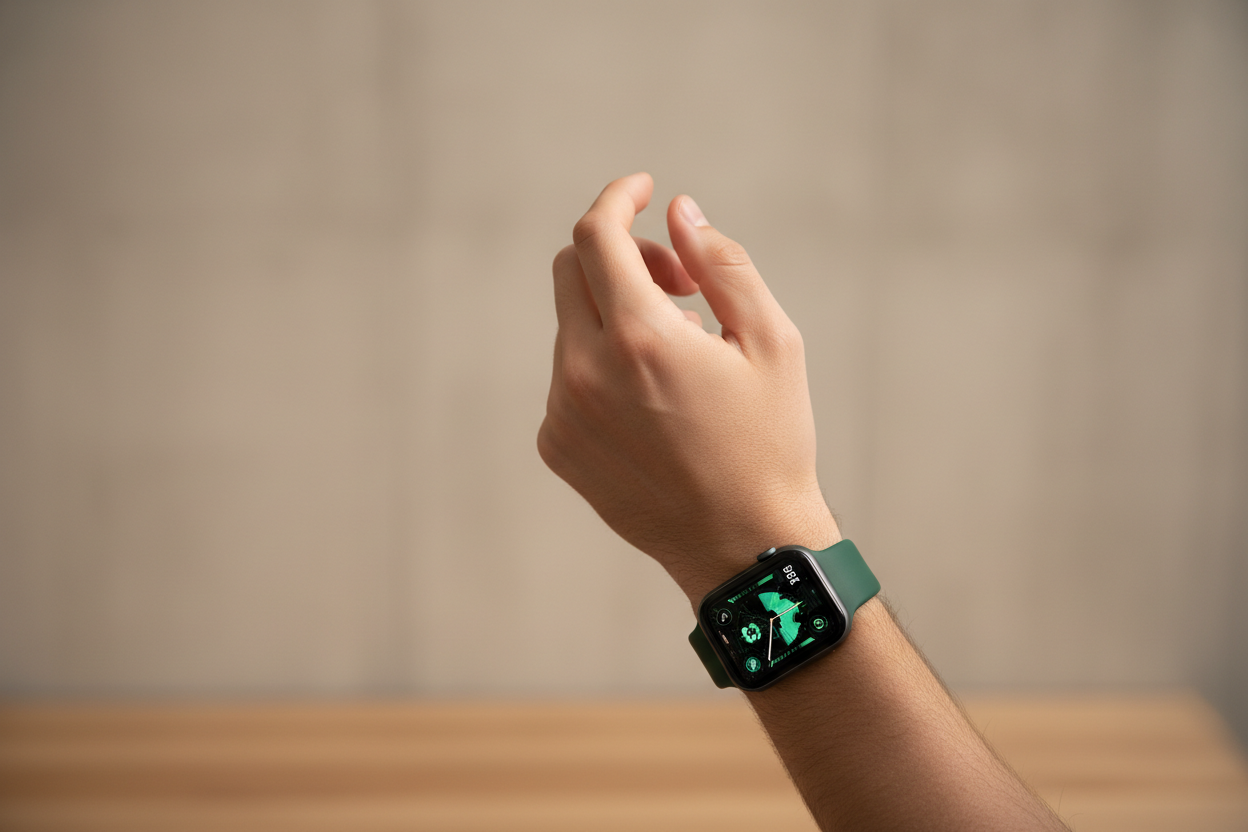
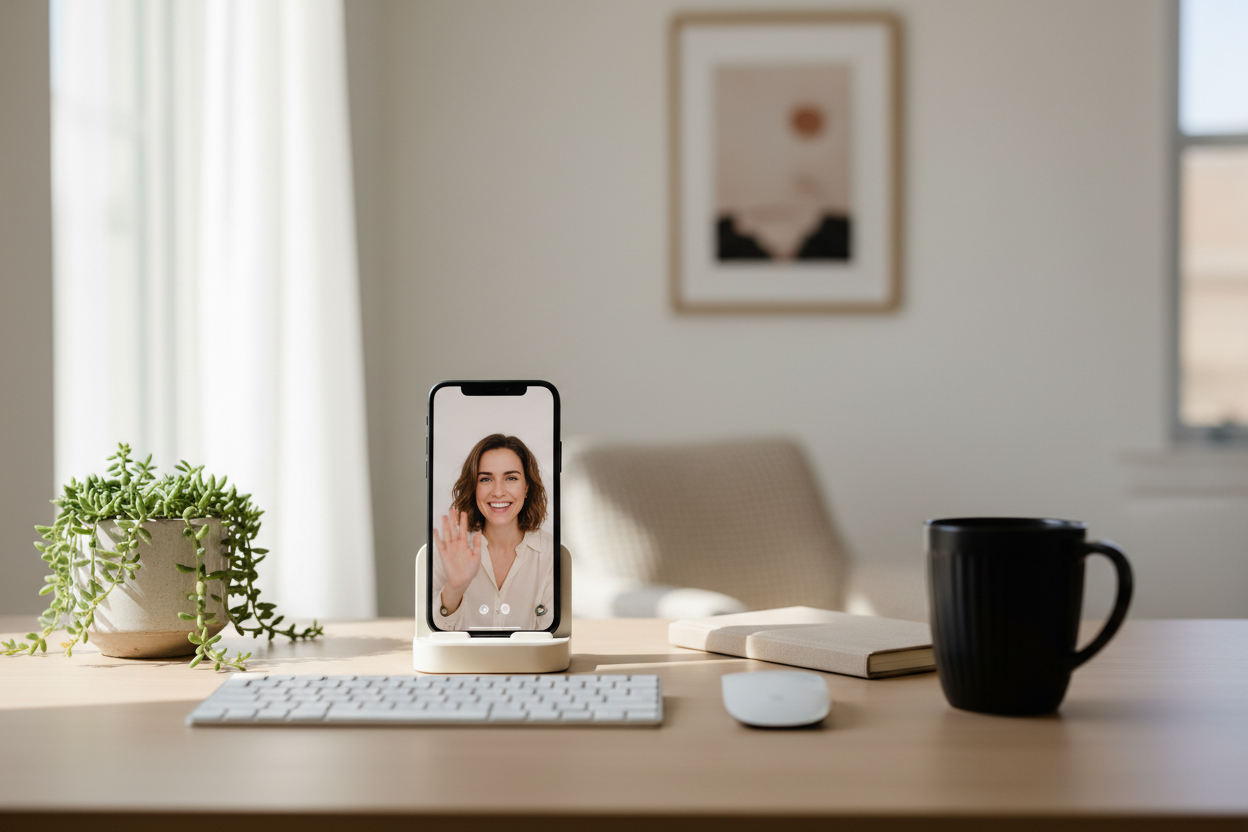
The operative word today is convenience. While the Apple Watch is designed to bring convenience into your life, with so many functions and features it can be hard to always see it that way. These 5 tips are things you can put to use immediately in your everyday life to bring convenience back to the Apple Watch!
1. Unlock Your iPhone with Your Apple Watch
This is really useful if you're wearing a mask and Face ID isn't working. You'll need an iPhone X or later with the latest iOS, and an Apple Watch Series 3 or later with the latest watchOS. Your Apple Watch must have a passcode and wrist detection enabled, and must be on your wrist and unlocked, with WiFi and Bluetooth enabled on both devices.
Once set up, head to Settings > Face ID & Passcode on your iPhone. Enter your passcode, scroll down to Unlock with Apple Watch, and toggle it on next to your Apple Watch name. Now just wake your iPhone, look at it, and swipe up to unlock!
2. Quickly Silence Alerts and Notifications
Perfect for video calls and meetings. Head to the Settings app on your Apple Watch, scroll down to Sounds & Haptics, and toggle on Cover to Mute. When an alert comes in, simply cover your watch with your palm for 3 seconds and it's silenced. Simple and discreet!
3. Set Up Custom One-Tap Message Replies
Apple includes some canned responses, but you can create your own. Head to the Watch app on your iPhone, scroll down to Messages, tap Default Replies, scroll to the bottom, and tap Add Reply.
Bonus: Tap Edit at the top right of Default Replies to delete or reorder existing replies for even quicker access to your most-used responses.
4. Hold a Call While You Find Your iPhone
Instead of scrambling to find your iPhone when a call comes in, you can place it on hold from your Apple Watch. When receiving a call, tap the three dots and select Answer on iPhone. The call will be placed on hold until you pick up from your iPhone. No more missed calls!
5. Locate Your Misplaced iPhone
On your Apple Watch, swipe up from the bottom of the screen to access Control Center, and tap the ping iPhone icon. Your iPhone will start sounding a loud "find me" alarm. Once you locate it, tap the screen to silence it. Say goodbye to missing iPhones!
Follow us on Instagram @ownloop for all our latest content, and visit ownloop.com for the most comfortable Apple Watch bands you'll ever wear.