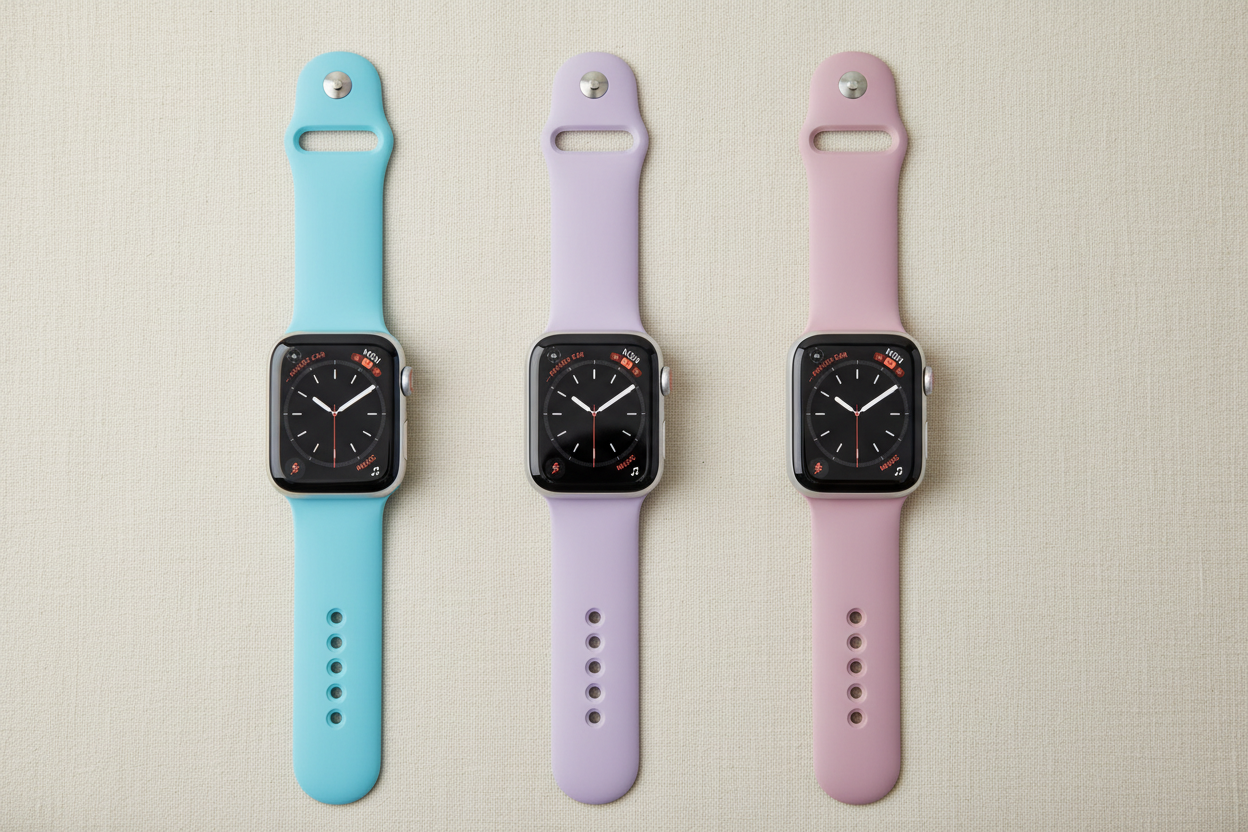
Losing your Apple Watch can be a frustrating and stressful experience, but there are steps you can take to increase your odds of finding it. Here's what to do if your Apple Watch goes missing — and what to do if you can't track it down.
1. Use the Find My App
Your first move should be the Find My app on your iPhone. It shows the location of your Apple Watch and all other Apple devices connected to your iCloud account. Open the app, tap the Devices tab, and select your Apple Watch. If it's nearby and connected to a network or your iPhone, you'll see its location on the map. If it's not connected, you'll see its last known location.
2. Play a Sound
If your Apple Watch might be nearby but out of sight, use the Play Sound feature. This plays a loud audible sound on your watch — even if it's on silent or vibrate. In the Find My app, select your Apple Watch and tap Play Sound. Great for when it's hiding between couch cushions or under a pile of clothes.
3. Enable Lost Mode
If you still can't find it, enable Lost Mode. This immediately locks your Apple Watch and displays a custom message with your phone number, so anyone who finds it knows how to reach you. It also enables Activation Lock, preventing anyone from using your watch without your Apple ID and password.
To activate Lost Mode:
- Open the Find My app on your iPhone.
- Tap the Devices tab at the bottom of the screen.
- Tap your Apple Watch from the list of devices.
- Tap Activate under Mark as Lost.
- Enter a phone number and a message to display on the lock screen.
- Tap Activate to enable Lost Mode.
4. Erase Your Device Remotely
If you have sensitive information on your lost Apple Watch, you can remotely wipe it. In the Find My app, select your Apple Watch under the Devices tab and tap Erase this Device. This removes all data from your watch, including personal information, apps, and contacts.
Whatever you do — don't panic! Following the steps above will maximize your chances of finding your Apple Watch, and if not, ensure no one else can use it.
Whether you're still rocking your current Apple Watch or in the market for a new one, a fresh band is a great way to make it feel brand new again.