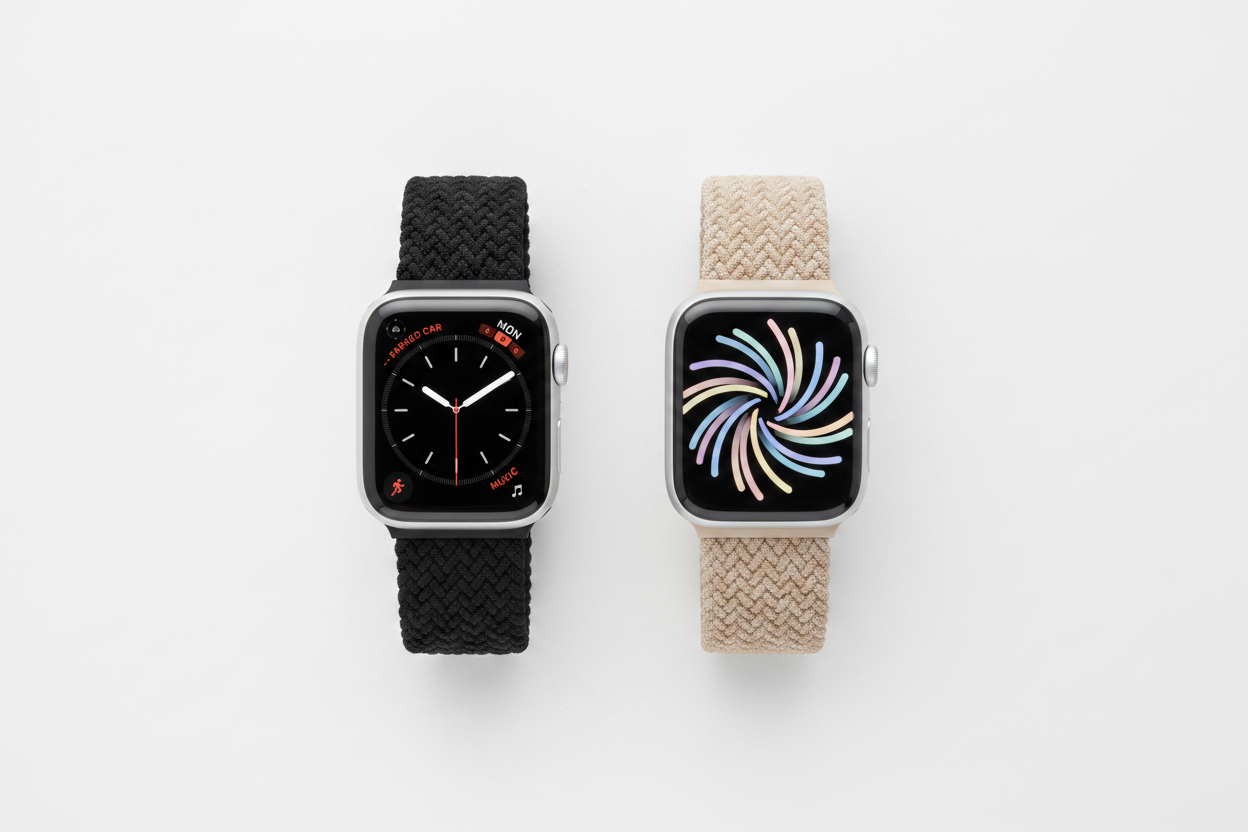
OIt seems like Apple has a watch face for everything — exercise, productivity, style, and even astronomy. But changing your watch face for every activity can feel like a big inconvenience.
That's why every Apple Watch user needs to know how to automatically change their watch face based on the time of day or their location. Follow this quick guide to create a watch face automation using the Shortcuts app on your iPhone.
How to Automatically Update Your Apple Watch Face
To create an automation on your Apple Watch, you must have watchOS 7 or later. You'll also need Apple's Shortcuts app — download it from the App Store if it isn't already on your iPhone.
- Open the Shortcuts app on your iPhone.
- Tap the Automation tab at the bottom of the screen.
- Tap Create Personal Automation.
- Select Time of Day for time-based, or Arrive/Leave for location-based.
- Choose your time or location based on your preference.
- Tap Add Action.
- Search for Watch and select Set Watch Face.
- Tap Face highlighted in blue at the top of your screen.
- Choose your desired watch face.
- Tap Next at the top right of your screen.
- Unselect Ask Before Running so your watch face changes automatically.
- Tap Done at the top right of your screen.
There you have it — your watch face will automatically update based on your desired configuration!
Automation Ideas to Try
Automate Your Exercise Watch Face
Do you use a specific watch face for exercise? Automate your watch to change when you leave for your morning run, or when you arrive at and leave the gym.
Switch to Your Productivity Watch Face for Work
If you use your Apple Watch to stay more productive at work, this automation was made for you. Automatically switch to a minimalist design to stay focused, or go with an information-packed face to stay up to date — all without lifting a finger.
Keep Your Apple Watch Looking Its Best
No matter what watch face you're using at any given time, keeping your watch band fresh is a great way to ensure your watch always looks its best.